> For the complete documentation index, see [llms.txt](https://wiki.spiritshop.com.br/suporte-admin-3.0/llms.txt). Markdown versions of documentation pages are available by appending `.md` to page URLs; this page is available as [Markdown](https://wiki.spiritshop.com.br/suporte-admin-3.0/promocoes-e-marketing/enviar-feed-xml-no-google-merchant-center-com-busca-programa.md).
# Enviar Feed XML no Google Merchant Center com Busca Programa
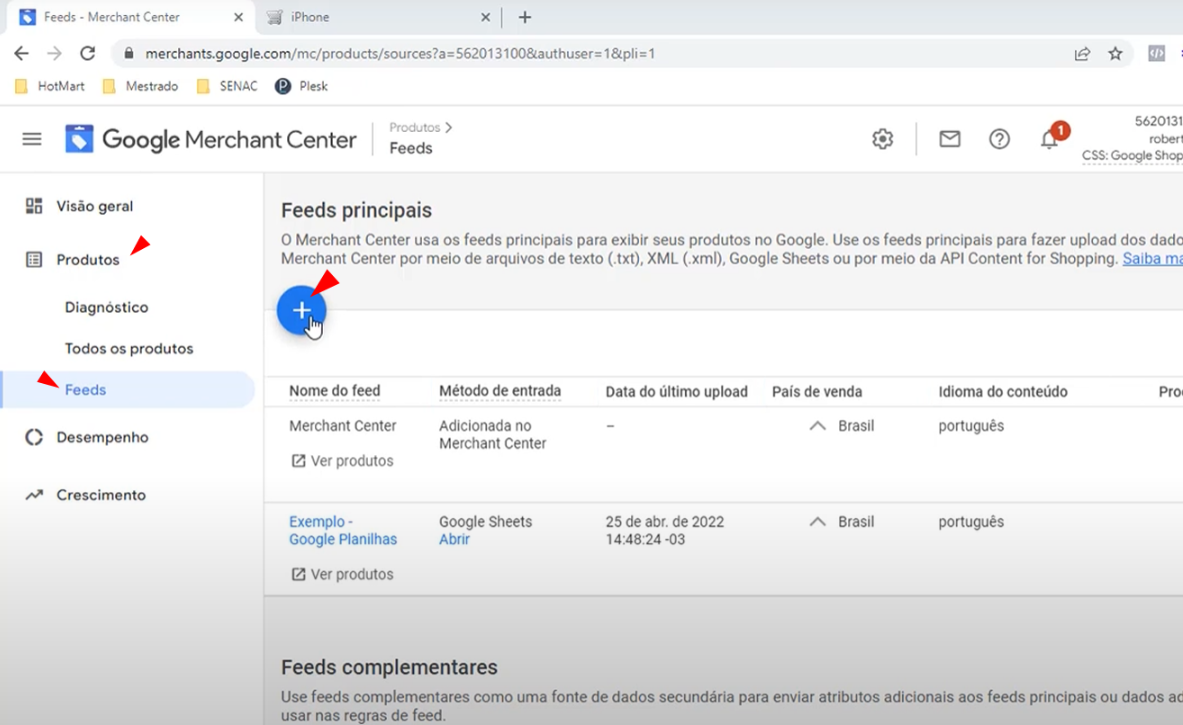
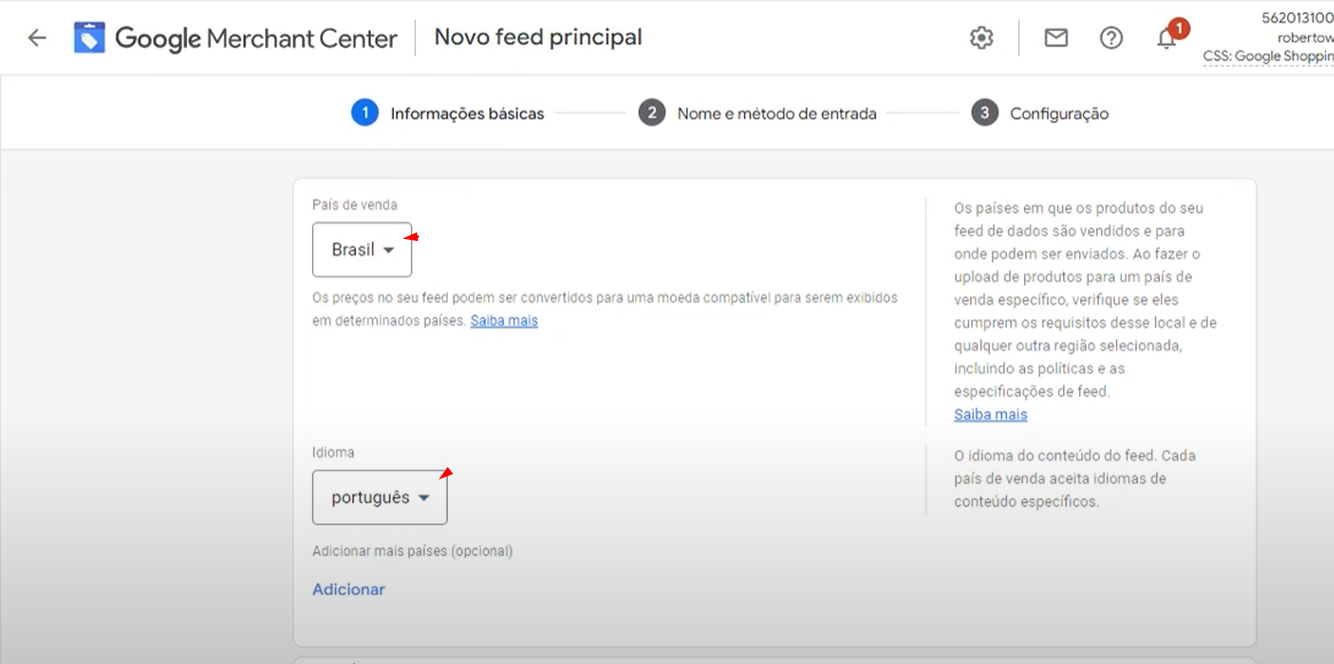
1 - Acesse seu Painel do Google Merchant Center e Crie um novo Feed de Produtos seguindo os passos abaixo.
->
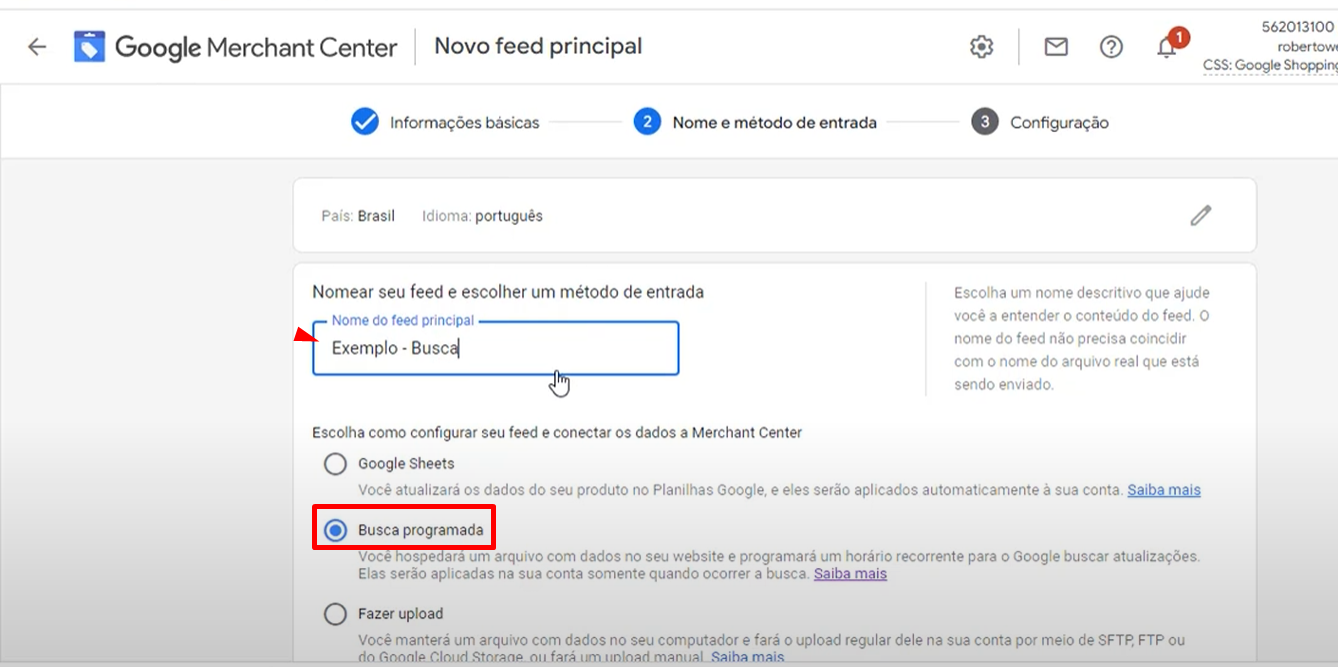
## 2 - Escolha o tipo "Busca Programada"
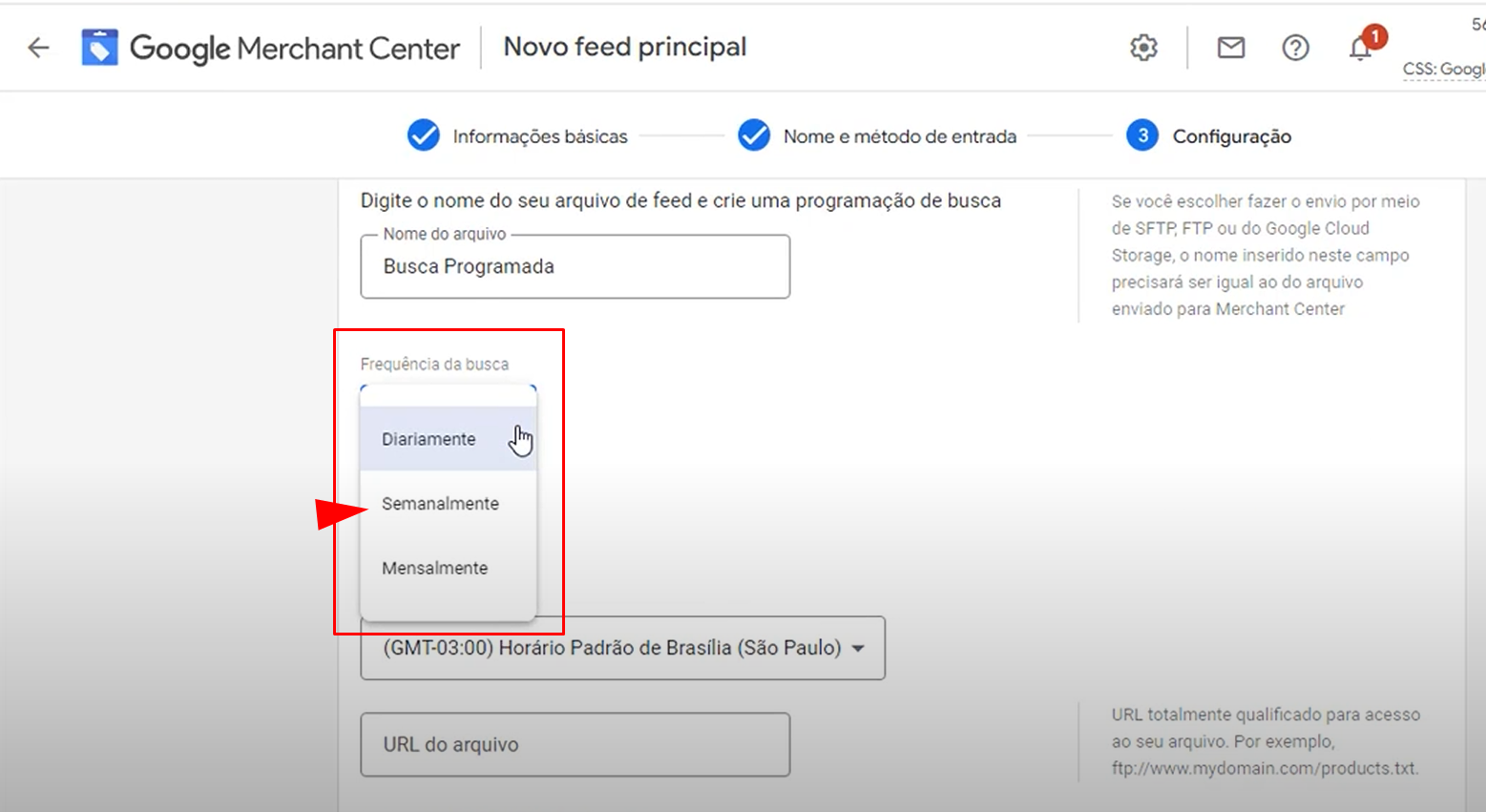
## 3 - Configure a Frequência do Bot Google que irá fazer a Busca por atualizações no Feed.
— > **Sugestão**: (**Semanalmente, sábados ou domingos, a qualquer horário entre 10pm e às 05am**) para **não gerar impacto de desempenho na Loja em horário comercial**.
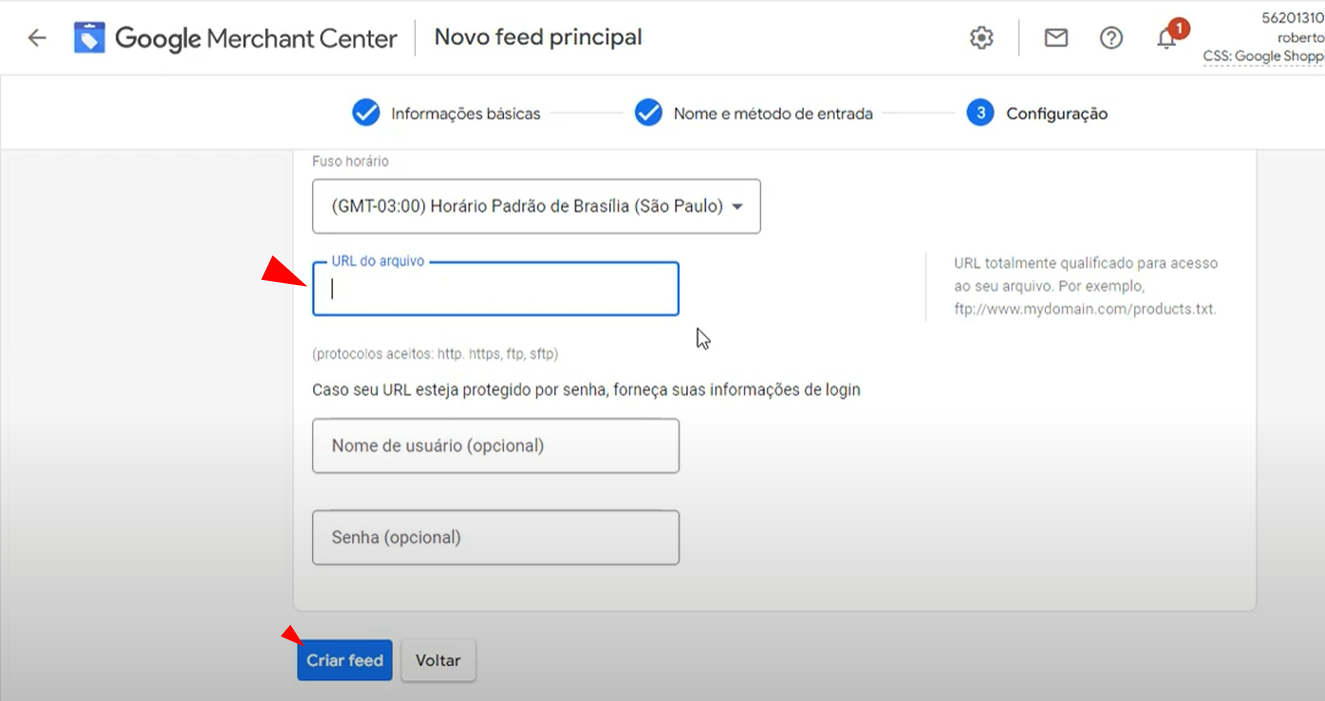
## 4 - Insira a "URL" do seu Feed XML SpiritShop e clique em "Criar feed".
**Sua URL->** **.****sualoja****.com.br/index.php?spsr=feed/google\_base**
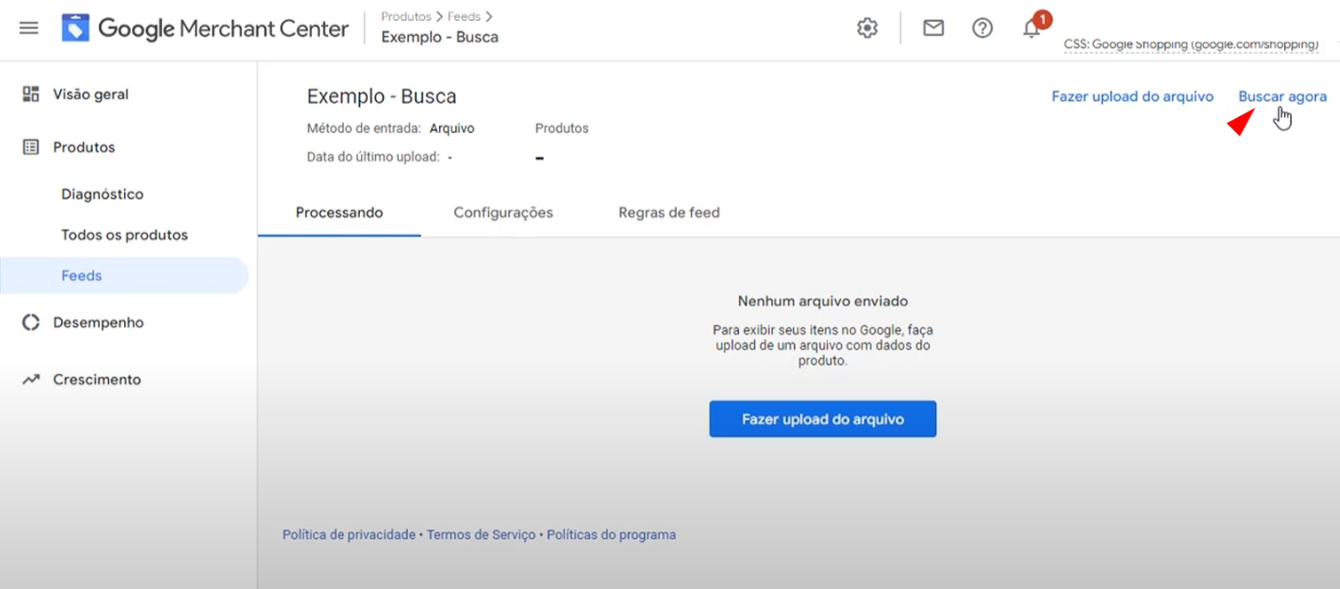
## 5 - Após criar o Feed, espere a tela carregar e clique em "Buscar agora"
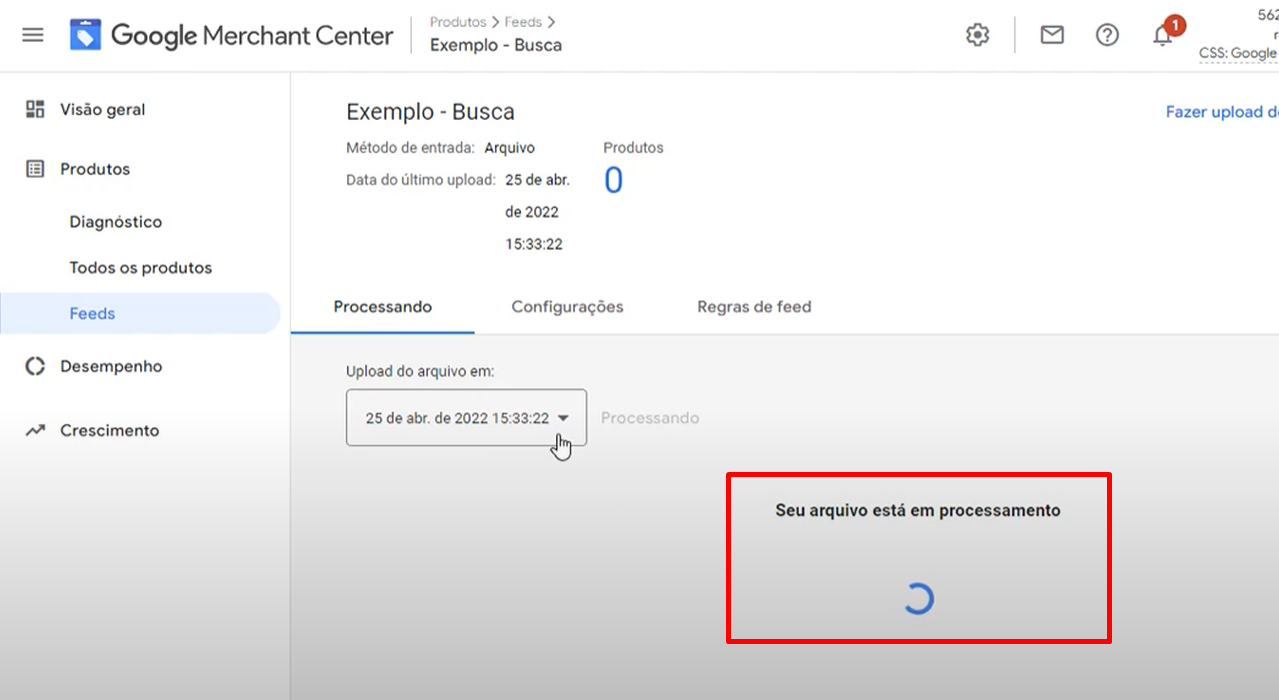
## 6 - Aguarde o processamento do seu Feed.
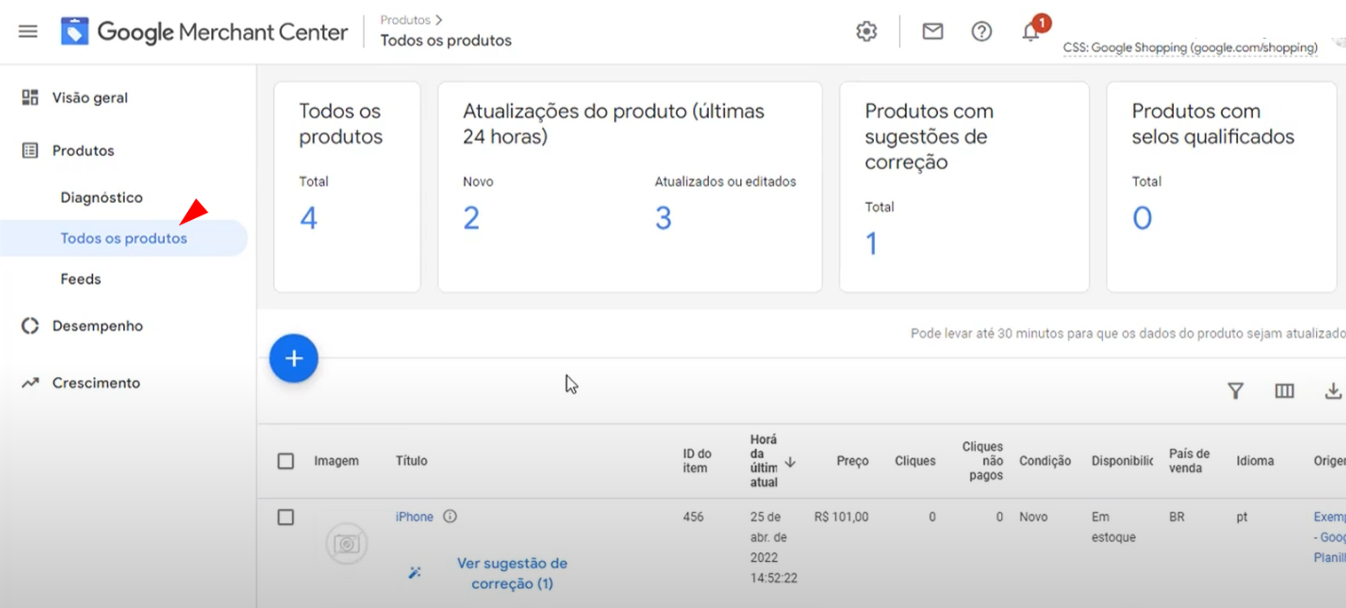
## 7 - Pronto! Já pode conferir o carregamento do seu Feed na aba Produtos.
-> **Confira também**:
* como [enviar o seu **Sitemap** no **Google Search Console**](https://wiki.spiritshop.com.br/suporte-admin-2.0/promocoes-e-marketing/enviar-o-sitemap-no-google-search-console.).
* Erros comuns: [Falha ao carregar o feed (servidor limitou a solicitação http)](/suporte-admin-3.0/integradores/falha-no-carregamento-do-feed-do-catalogo-facebook-e-google-o-servidor-limitou-a-solicitacao-http.md)